Docs / Import from n8n
Import from n8n
Already have workflows in n8n? Upload an n8n workflow export and Falcon converts the nodes, connections, and expressions into a fully editable visual workflow — with a per-node mapping report so you can see exactly how everything was translated before you commit.
Overview
The importer reads an n8n workflow’s JSON and rebuilds it as a native Falcon workflow. Wherever n8n has a direct Falcon equivalent (HTTP Request, Switch, Code, Microsoft Excel, GoHighLevel, and more), the node is mapped natively. n8n’s “AI cluster” — an agent or chain node with its model, memory, and tool sub-nodes — is collapsed into a single Falcon agent node. Anything without a native equivalent is scaffolded as an HTTP Request node so the shape of your workflow is preserved and nothing silently disappears.
Credentials are never imported. n8n exports don’t contain secrets, so you’ll reconnect each integration in Falcon after importing. The report tells you which nodes need attention.
Step 1 — Export your workflow from n8n
- Open the workflow in n8n.
- Click the ⋮ (three-dot) menu in the top-right and choose Download.
- n8n saves a
.jsonfile to your computer — that’s the file Falcon imports.
You can also copy the workflow JSON to your clipboard and paste it directly (see Step 2).
Step 2 — Import into Falcon
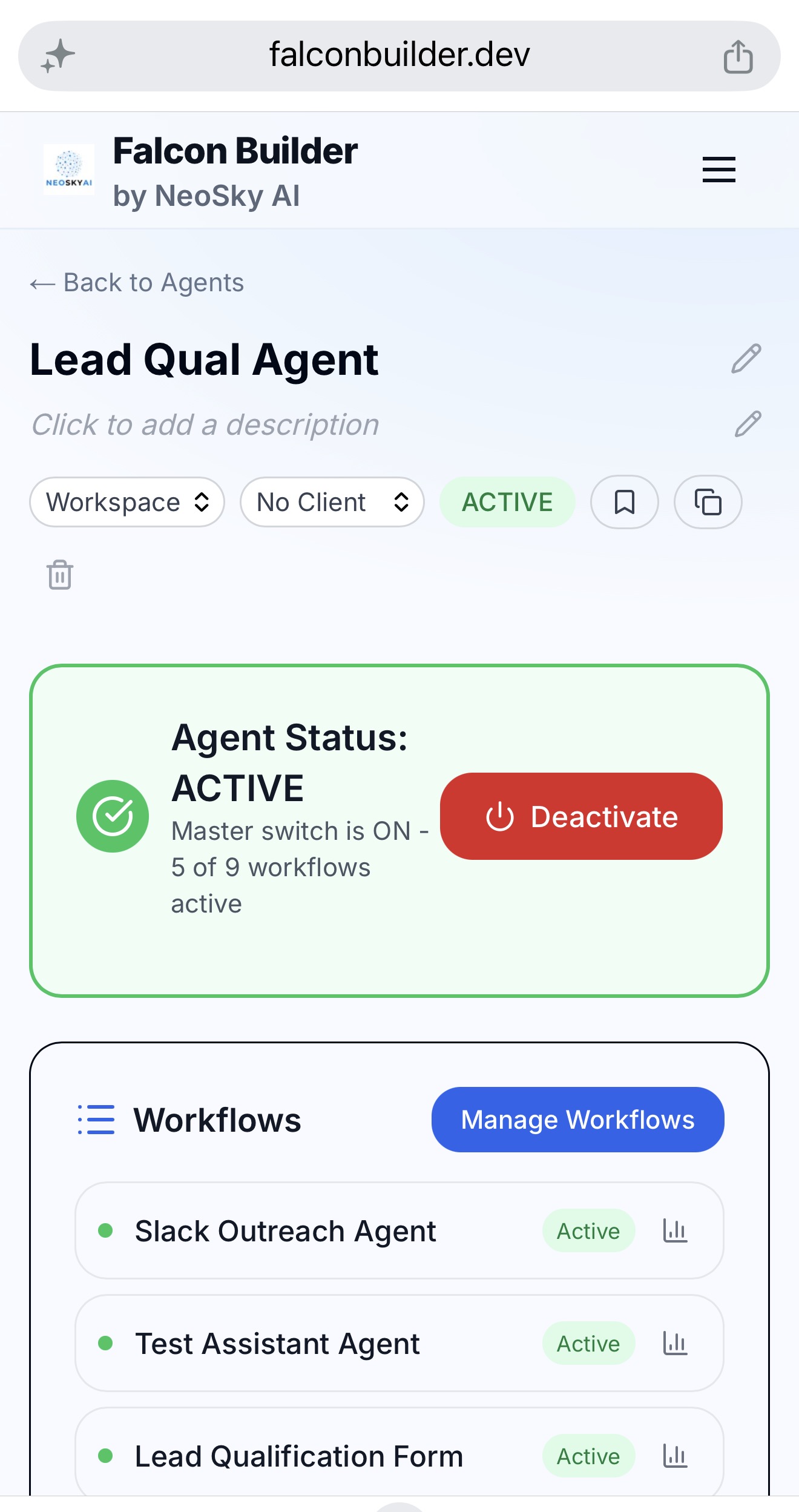
- Go to Dashboard → Agents and open the agent you want the workflow to live under (or create one first).
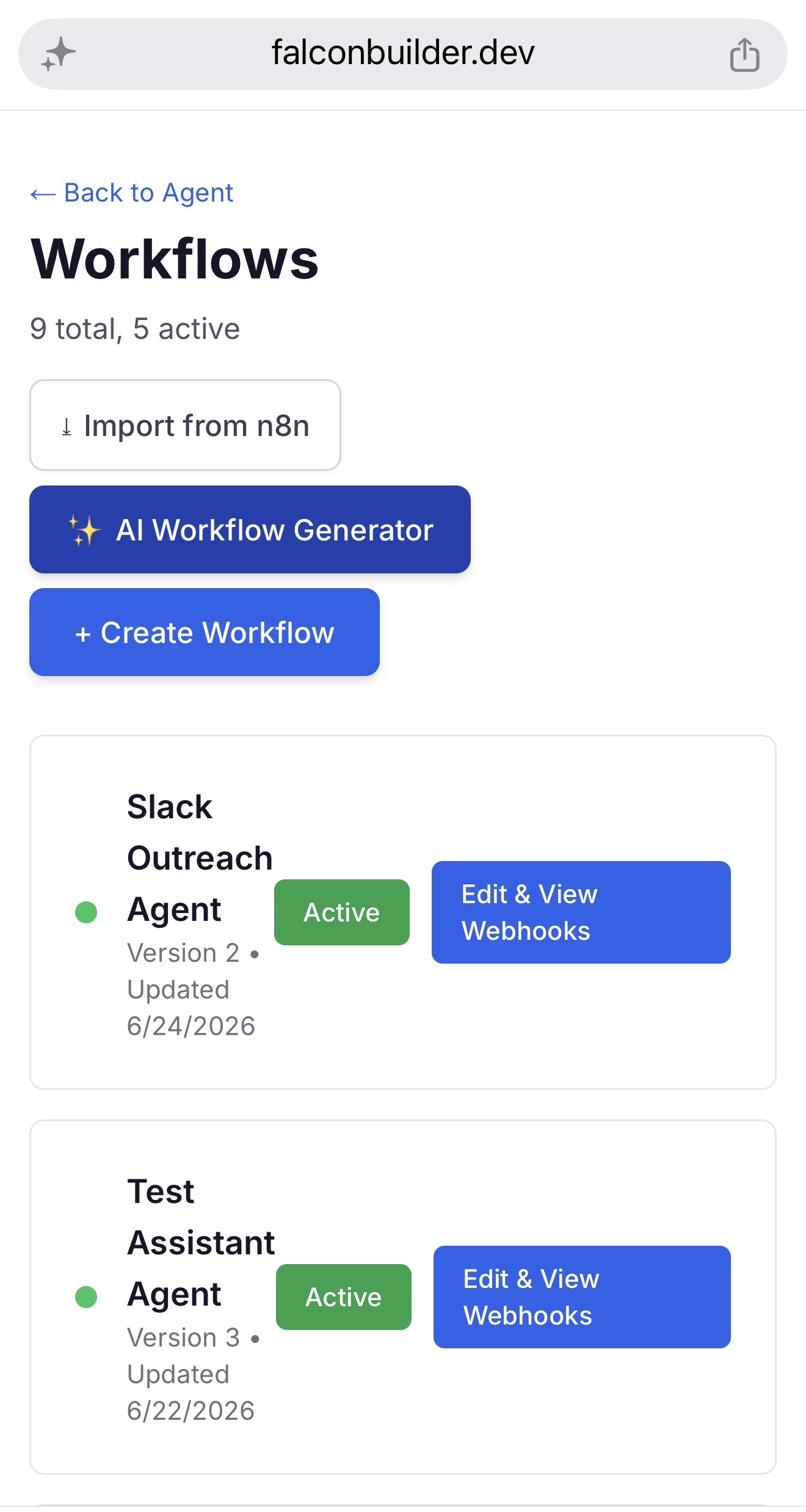
- Open the agent’s Workflows page.
- Click “⤓ Import from n8n”.
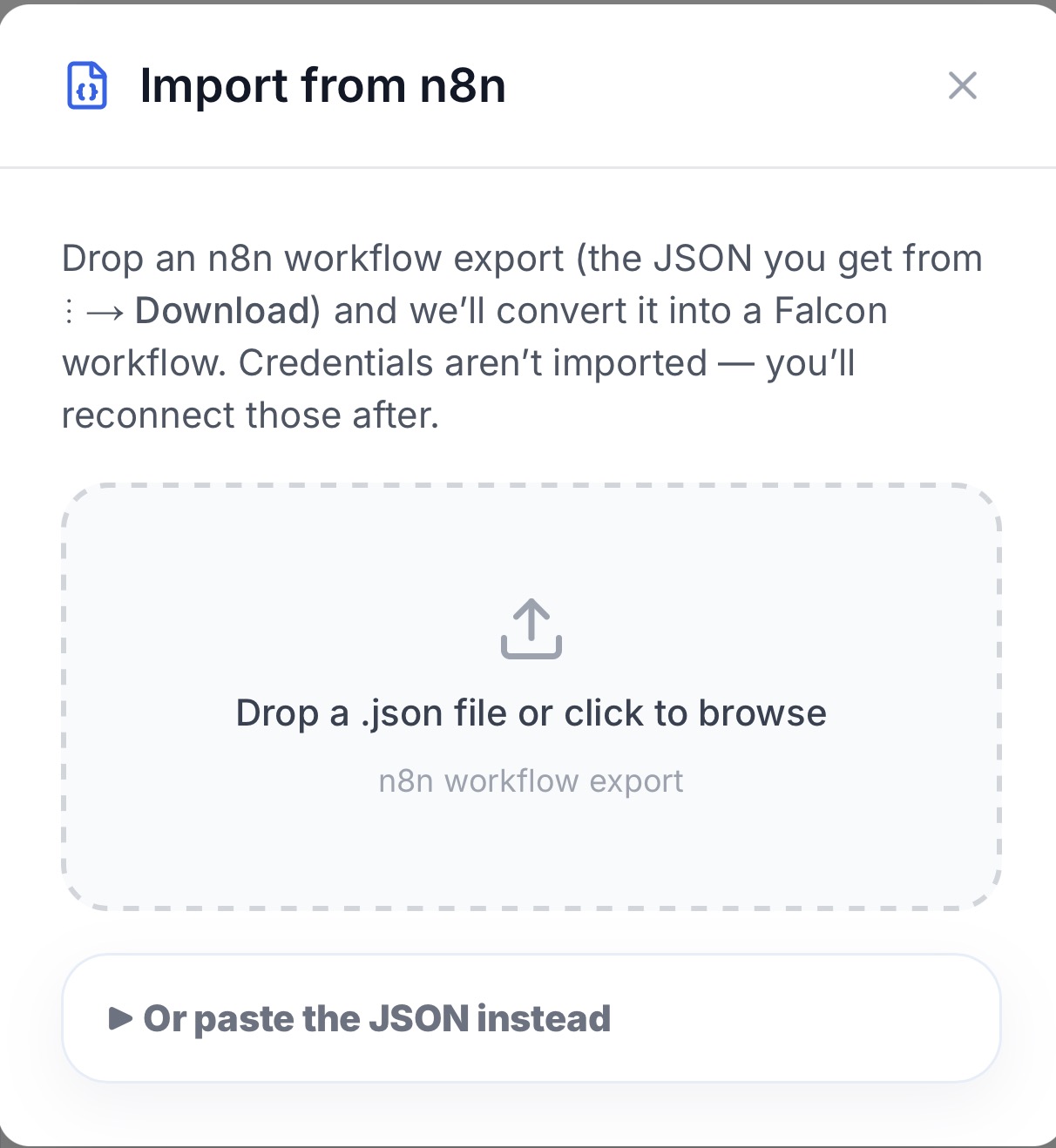
- Drop the .json file onto the upload area or click to browse. Prefer to paste? Expand “Or paste the JSON instead” and paste the workflow JSON.
- Review the conversion report (see below), edit the workflow name if you like, and click “Create workflow”.
- The new workflow opens in the visual editor in Draft mode, ready to review and finish.
The conversion report
Before anything is created, Falcon shows a preview: the total node and connection counts, any warnings, and a row for every node describing how it was mapped. Each node gets a status:
- Mapped natively — a direct Falcon equivalent. Re-select the credential and you’re done.
- Mapped (review) — mapped to a close equivalent, but worth a quick look (some settings may not translate 1:1).
- HTTP Request fallback — no native node existed, so the call was scaffolded as an HTTP Request. Set its URL, method, and auth.
- Folded into agent — an n8n sub-node (model, memory, parser, or tool) that was absorbed into a Falcon agent node.
- Unsupported — rare; the node couldn’t be represented and is flagged so you can rebuild it manually.
Warnings at the top call out anything that needs follow-up, such as HTTP-fallback nodes that need a URL or credentials that must be reconnected.
What gets converted
- Nodes — mapped to their Falcon equivalents, with parameters carried across where they line up.
- Connections — rebuilt as edges, including IF true/false branches, Switch outputs by rule, and AI tool wiring into an agent’s tools port.
- Expressions — n8n expressions (
{{ $json.x }}and friends) are translated to Falcon’s expression syntax. - AI agents — an agent/chain plus its model, memory, output parser, and tool sub-nodes collapse into a single Falcon agent node.
- Standalone AI nodes — n8n’s OpenAI, Anthropic, and Google Gemini chat nodes become Falcon AI Prompt nodes (Assistant becomes Agent Loop), with the prompt, model, and temperature carried over and the provider inferred from the model id.
- Layout & sticky notes — node positions and documentation sticky notes are preserved.
- Microsoft Excel — including n8n’s match-based Append, Update, and Append or Update (upsert) operations, which map directly to Falcon’s Excel node.
What you’ll finish after importing
The importer gets you most of the way; a few things are yours to wire up:
- Reconnect credentials. Open each integration node and select (or create) the matching Falcon credential. See Credentials.
- Finish HTTP-fallback nodes. Any node mapped to HTTP Request needs its URL, method, headers, and auth set.
- Eyeball cross-node references. An expression that pulls a value from a different upstream node may need a small adjustment, since n8n and Falcon reference upstream data differently.
- Test before activating. Use the editor’s Test Node button to verify individual nodes, then activate the workflow when it runs clean.
Troubleshooting
- “That file isn’t valid JSON” — make sure you exported via n8n’s ⋮ → Download (not a screenshot or a copied node). The file should start with
{ "nodes": [ … ] }. - “Doesn’t look like an n8n workflow export” — the JSON is missing its
nodesarray. Re-export the whole workflow rather than a single node. - A node imported as HTTP Request — that integration doesn’t have a native Falcon node yet. The request is scaffolded so the workflow still runs once you fill in the details.