
Docs / Rich Chat UI
Rich Chat UI
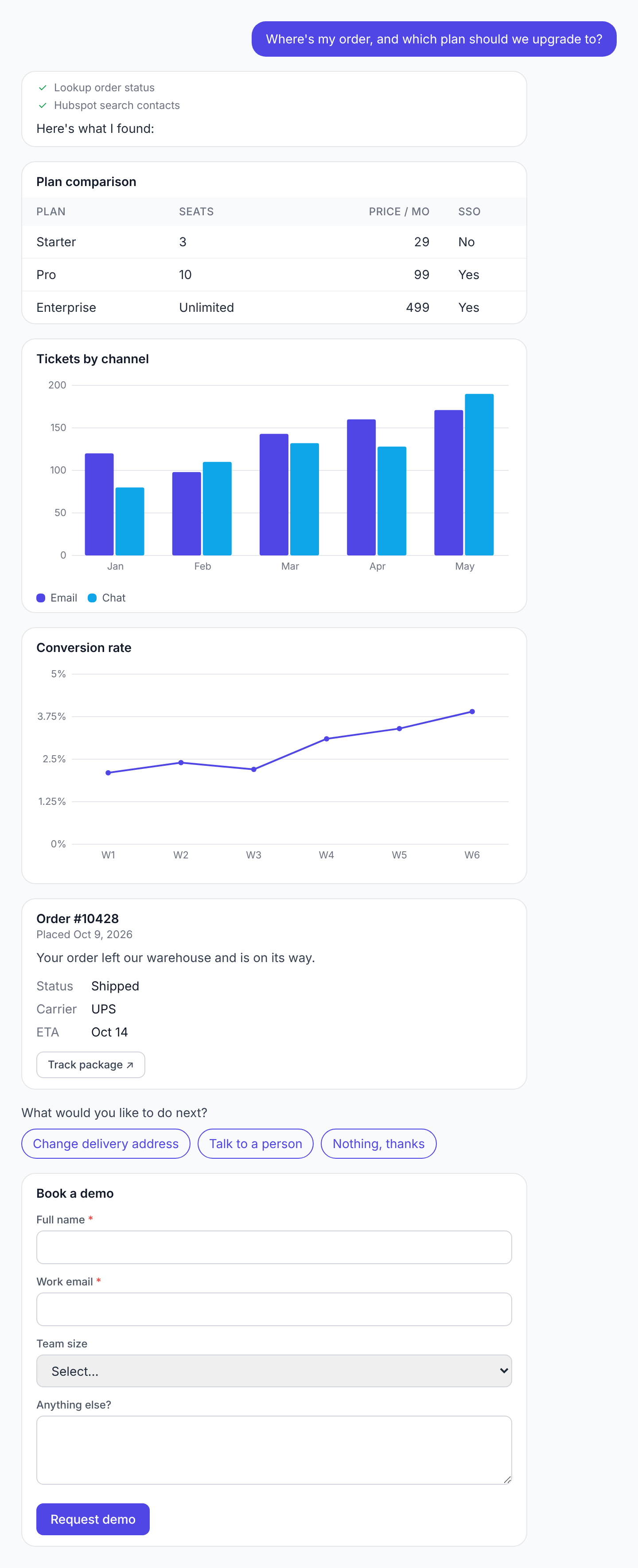
Let your agents answer in a chat interface with real components instead of walls of text: a table to compare options, a chart for numbers, a card for a single record, buttons for the next step, or a short form to collect details. It works in hosted chat pages and the embedded website chatbot.
Turn it on
- Open the Agent Loop or AI Prompt node that replies to your chat interface and tick Rich Chat UI.
- That gives the model a built-in
render_uitool. It decides when a component helps and calls the tool; the component appears below its reply text. - Nothing else in the workflow changes. Components travel to the chat on their own stream, so your Webhook Response can keep returning
{{agent_result.response}}(or{{ai_response.response}}) as before.
Components
- Table — a title, column headers, and rows. Use it for comparisons and lists of records. Number columns are right-aligned. Up to 12 columns and 100 rows.
- Chart — a bar or line chart with category labels and up to 5 data series (optional unit such as
%). Up to 50 points. - Card — one record, such as an order, booking, or product: title, subtitle, a short paragraph, an optional image, label/value fields, and up to 4 link buttons.
- Choices — up to 8 clickable buttons for the next step. The clicked option is sent as the visitor's next message, so the conversation continues with no typing.
- Form — up to 10 fields (text, email, number, long text, or a dropdown) to collect several details at once. On submit, the answers are sent as the visitor's next message, one Label: value line per field.
Where it works
- Only in chat interfaces: the hosted chat page and the embedded website chatbot.
- Everywhere else (Test Node, schedules, webhooks, form interfaces), the tool isn't offered and the node runs exactly as it would with the option off.
- It's also off whenever the node has a Structured Output schema, because that reply has to be pure JSON.
- The model must support tool use. On an AI Prompt node, a model without tool support simply replies in plain text and the run logs a warning.
Streaming and progress
- Replies stream into the chat as they're written, including from agents that use tools, on Anthropic, OpenAI, Mistral, and OpenRouter models. On Google and Ollama, agents with tools reply once the run finishes.
- While an Agent Loop works, the reply shows a progress row for each tool it calls (for example “✓ Lookup order status”). These rows show your tool names to visitors, so give tools names you're happy for people to see.
History, memory, and output
- Choice buttons and forms only accept input on the latest reply, and lock once used.
- For signed-in chats, components are saved with the conversation and appear again when the visitor reopens it.
- With Conversation Memory on, the stored reply notes what was shown (for example which choices were offered), so the model knows on the next turn what the visitor saw.
- The node output also includes the rendered components as a
uiarray (e.g.{{agent_result.ui}}) for downstream nodes.
Safety
- The model only sends structured data. Falcon Builder checks every component and draws it with its own built-in components, so no HTML or script written by the model ever reaches the page.
- Links and images must be
https://; anything else is removed. Oversized tables, charts, and lists are trimmed to the limits above.
Tips
- Say in the system prompt when you want components, e.g. “When comparing plans, show a table. After answering an order question, offer the next steps as choices.”
- Use choices to guide visitors through a flow (qualify a lead, pick a time slot, route a support request) instead of asking open questions.
- Keep forms short. Ask for the few details you need now; the conversation can collect the rest.