Docs / Real-Time Collaboration
Real-Time Collaboration
Open the same workflow as a teammate — or as Claude working over MCP — and see each other live: who’s there, which node they’re on, and what just changed. Conflict-safe saves guarantee nobody silently overwrites anyone’s work.
Who’s here: presence avatars
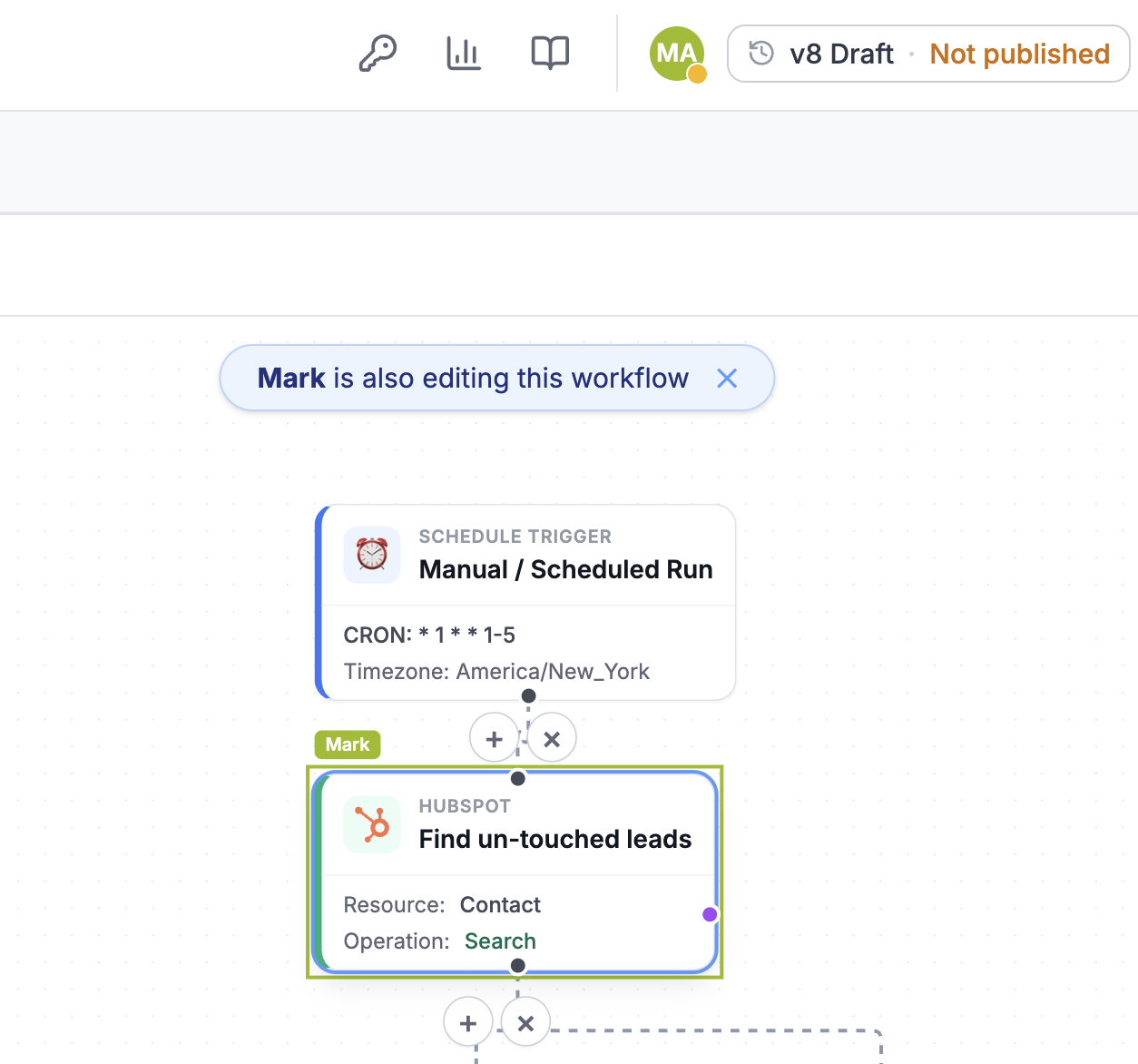
When someone else has the same workflow open, their avatar appears in the editor header next to the version controls:
- Each person gets a colored initial avatar — hover it for their name and whether they can edit.
- An amber dot marks users with edit rights — the people whose saves could interact with yours.
- If another editor is present, a dismissible “Name is also editing this workflow” notice appears above the canvas.
- Avatars appear within a second of someone opening the workflow and clear shortly after they leave.
What they’re touching: selection rings
The node a collaborator currently has selected is highlighted on your canvas with a ring in their color and a small name tag above it. As they click through the workflow, the ring follows within a second or two — so you always know where they’re working and can stay out of each other’s way.
Live updates when someone saves
What happens on your screen when a collaborator saves depends on your own state:
- You have no unsaved changes: your canvas silently updates in place to their version — viewport and selection preserved — with a toast like “Updated with Name’s latest changes.” Watching a teammate (or Claude) build is completely passive.
- You have unsaved changes: nothing is touched. You get a heads-up that they saved and that your next save may conflict — conflict protection takes it from there.
Conflict protection: no more silent overwrites
Every save of the workflow graph carries the revision it was based on. If someone else saved after you loaded, your save is rejected instead of applied, and a banner explains that the workflow changed while you were editing. You choose:
- Load their version — reload the canvas with their save, discarding your unsaved changes.
- Keep my changes — save your copy over theirs, knowingly.
Until you pick a side, auto-save is paused so the doomed save isn’t retried. Renames, layout direction, and retry settings never trigger conflicts — only the graph itself is guarded.
Claude edits are visible too
When Claude (or any MCP client) edits a workflow through the MCP server, it shows up like a collaborator:
- A violet “Claude (via MCP)” avatar joins the header while Claude is actively editing.
- Every node an edit touched is ringed in violet with Claude’s name tag — during a multi-step edit you’ll watch the rings hop from node to node.
- Your canvas picks up each change live (same rules as human saves), and the presence fades out about a minute after Claude’s last write.
- MCP writes respect the same conflict guard: if you saved after Claude read the draft, Claude’s write is rejected — and if Claude wrote while you had unsaved changes, your next save surfaces the conflict banner.
Notes & limits
- Presence carries only display names, avatar colors, and node ids — never workflow content, credentials, or run data.
- This is presence + conflict safety, not simultaneous co-editing: when two people edit the same workflow at the same time, one save wins per conflict and the other person chooses how to proceed. For most teams, seeing each other is enough to avoid collisions entirely.
- Collaboration is per-workflow — opening different workflows in the same agent doesn’t interact at all.
- Nothing to configure — it’s on for every workflow, on every plan.
Related
- Connect any AI assistant (MCP) — let Claude, Cursor, or ChatGPT manage your workspace.
- Notifications — alerts when workflows fail or pause for approval.