
Docs / Permission Groups
Permission Groups
Decide what each Builder can build with: which nodes, which AI providers and models, which connections, and whether they can publish. Useful for contractors, junior builders, client workspaces and regulated teams. Available on Business and Enterprise plans, and in the self-hosted Community edition.
Who groups apply to
- Builders and agent-scoped editors can be placed in one permission group each. Members with no group are unrestricted.
- Owners and Admins are never restricted, and can’t be placed in a group.
- Viewers can’t edit anything, so groups don’t apply to them.
- If the workspace moves to a plan without permission groups, the rules stop applying. Nothing is deleted, and they apply again if you upgrade.
What a group can limit
| Rule | Options |
|---|---|
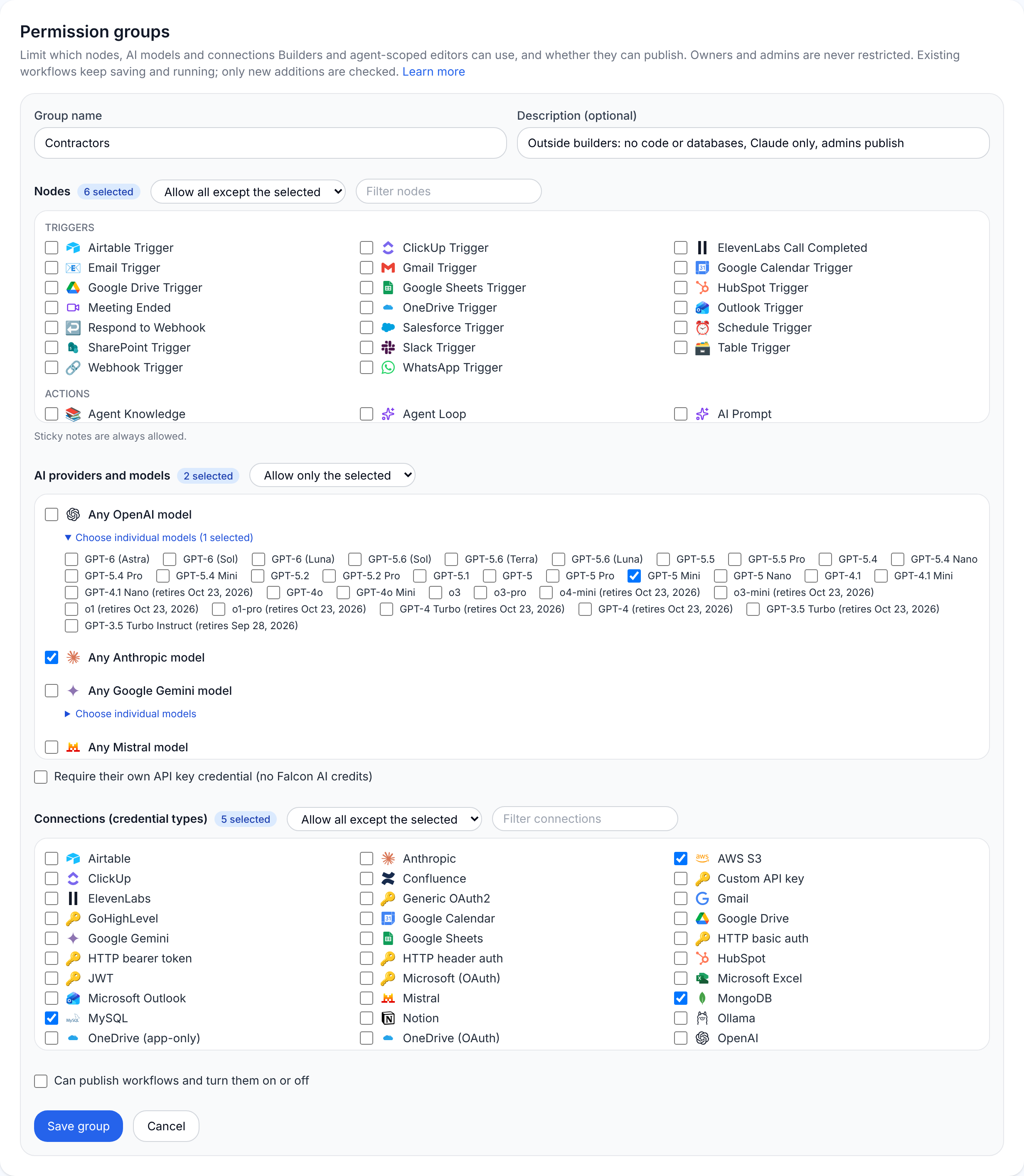
| Nodes | Allow all, allow only the selected, or allow all except the selected. Sticky notes are always allowed. |
| AI providers and models | Allow all, or allow only selected providers (any of their models) and individual models. Applies to AI Prompt, AI Judge, Agent Loop and the Guardrails grounding check. When a node doesn’t name a provider, its default counts (OpenAI for AI Prompt and AI Judge, Anthropic for Agent Loop). |
| Require their own API key | AI nodes must use one of the workspace’s API key credentials, so nothing is billed to the plan’s AI credits. |
| Connections | Allow all, only the selected, or all except the selected credential types (for example, block PostgreSQL and AWS S3, or allow only Slack and Gmail). This also covers the AI Decision node, which uses a TypeSafe AI credential. |
| Can publish | When off, members can build and test drafts but can’t publish a version or turn workflows on or off. An Owner or Admin publishes for them. |
Setting up a group
- Go to Settings → Team (Owners and Admins) and choose New group under Permission groups.
- Name the group and set its rules, then choose Save group.
- In Team Members, pick the group from the dropdown next to each Builder or agent-scoped member.
Changing a group’s rules applies to all its members right away. Deleting a group leaves its members unrestricted.
Existing workflows keep working
Rules apply to what a member adds. Each save is compared with the version it replaces, and only new uses of something the group doesn’t allow are refused:
- A workflow that already contains a blocked node, model or connection keeps saving, running and testing. The member can edit its prompts, labels and other settings.
- Adding another blocked node, or switching a node to a different blocked model or connection, is refused.
- Removing things is always allowed.
- New workflows (blank, from a template, imported, duplicated, or built with AI Generate) may only use what the group allows. This includes duplicating or importing an agent.
- Restoring an older version is allowed when everything it brings back is already in the current draft or the live version, so rolling back to what’s running is never blocked.
Running workflows are never stopped by a rule change. Rules control what members can add, not what already runs.
What members see in the editor
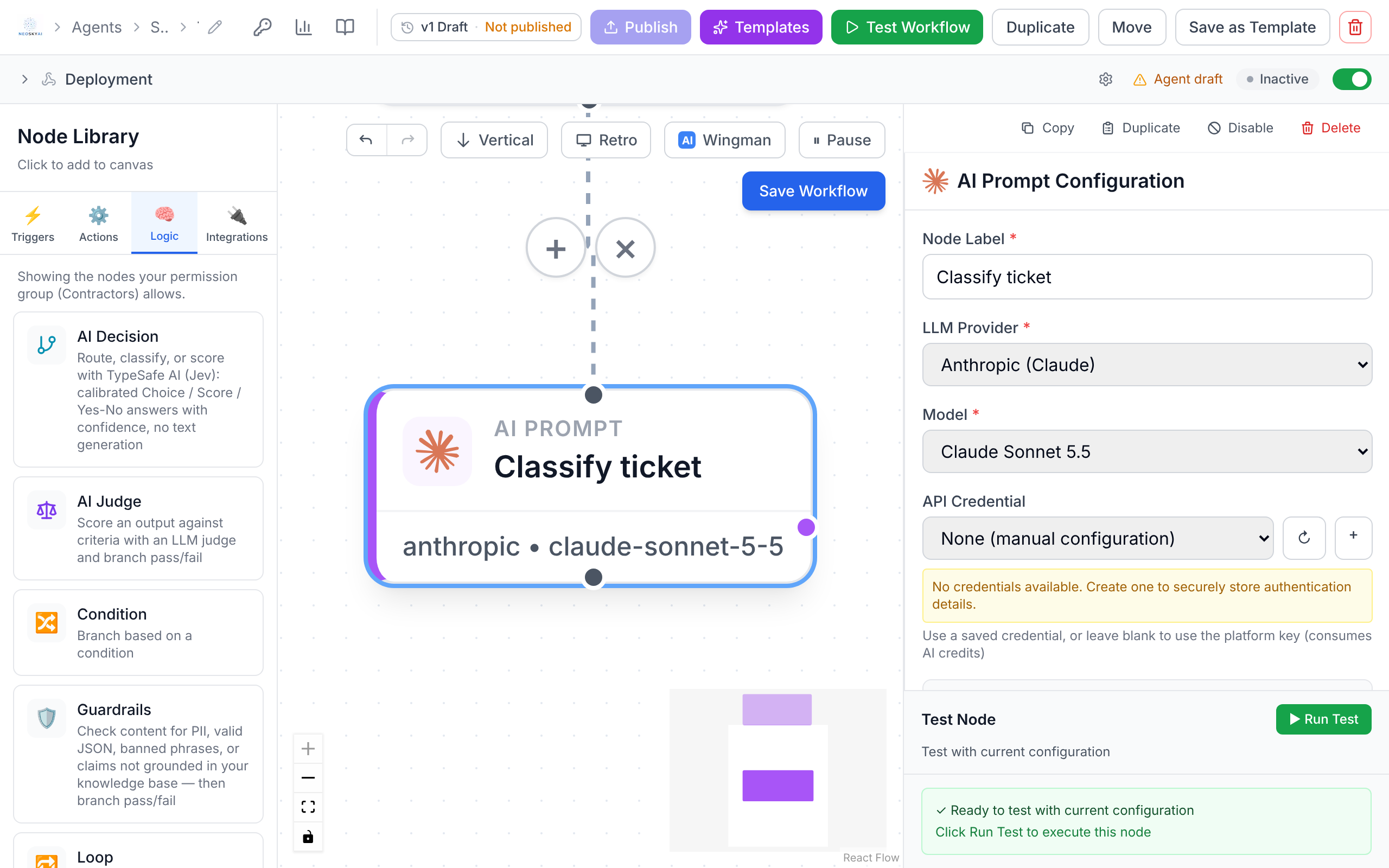
- The Node Library shows only the nodes their group allows.
- AI provider and model dropdowns list only allowed choices. A model already set on a node stays visible, marked “not allowed by your permission group”.
- Credential pickers hide connection types the group doesn’t allow.
- If the group requires their own API key, AI nodes show a note under the credential picker.
- If the group can’t publish, the Publish button is disabled and explains why.
- If a save adds something the group doesn’t allow (for example from a pasted node), the save is refused with the node and rule named, and the editor keeps their unsaved work.
Test Node, AI Generate and Wingman
- Test Node follows the same rule as saving: it won’t run a node or model the group doesn’t allow unless the saved draft already has it.
- AI Generate and Wingman are told the member’s rules, so they propose workflows that use only what’s allowed. When a request needs something blocked, they build the closest allowed version and say what an Admin would need to allow. Their proposals are checked like any other save.
Audit log and exceptions
- Creating, changing and deleting groups, assigning members, and every refused save, test or publish are recorded in the workspace’s audit trail, with who did it and which rule applied.
- Workspace access tokens (used by the MCP server and the REST API) can only be created by Owners and Admins, so actions taken with them aren’t limited by groups.
- Auto-improve and auto-publish are set up by Owners and Admins and follow their own rules.
Self-hosting
Permission groups are included in the Community edition. Upgrading an existing install adds the permission_groups table and a column on workspace members; no data changes until an admin creates a group.